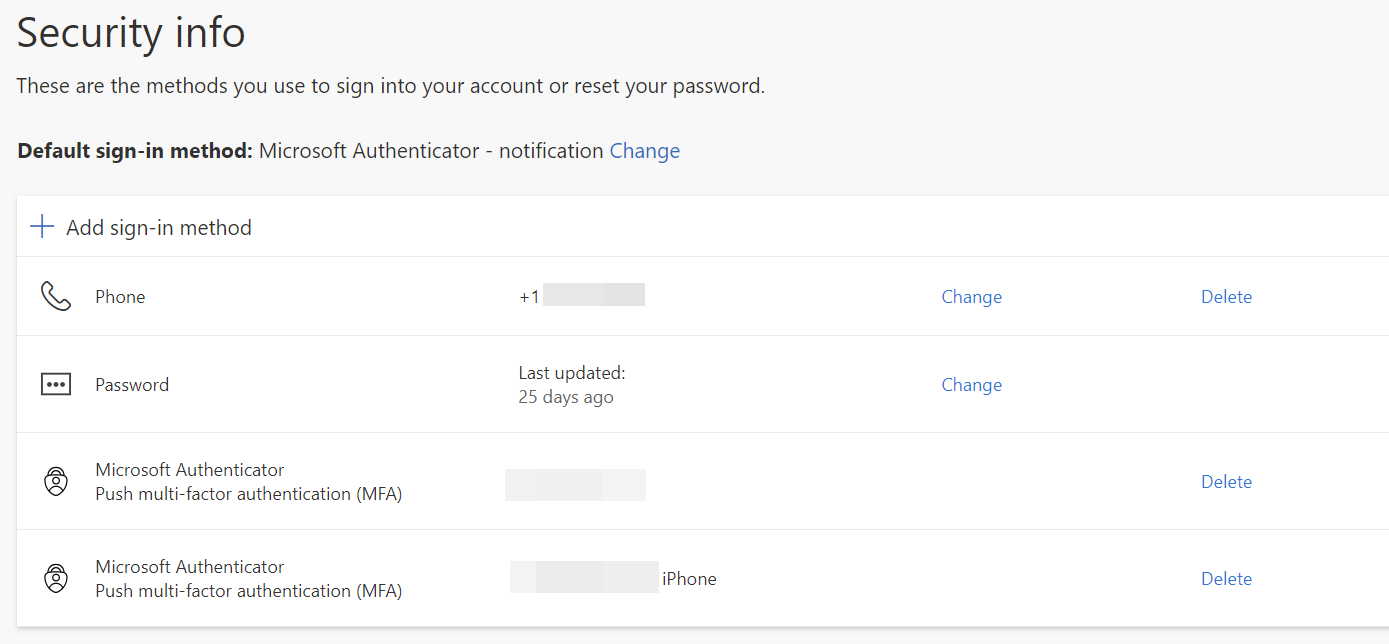
Register with the Microsoft Authenticator App
After the initial authentication process, the log-in process will not differ from the current process, except that SMS and Voice authentication are no longer available to verify your identity.

THIS IS A MULTIPLE-STEP PROCESS USING BOTH THE WORKSTATION LOGGED INTO OFFICE.COM AND THE MOBILE DEVICE.
BEGIN THIS PROCESS ON THE WORKSTATION

For best results:
Access your account on the desktop to start the process via office.com
Make sure the App installed on your mobile device is the Microsoft Authenticator app (blue lock with person figure inside)
Make sure your mobile device and app are set to "Allow Push Notifications"
If Previously Using ONLY SMS or Voice
If you already have Authenticator installed, continue to the If Authenticator is Already Installed section.
From the Workstation
Log into http://office.comon the PC as usual.
From the prompt to set up the Authenticator app, tap Next and complete the steps.
Only users who have allowed the Authenticator app push notifications and don't have it currently set up will see the prompt.
A QR code will generate to scan with the Mobile Device.
From the Mobile Device
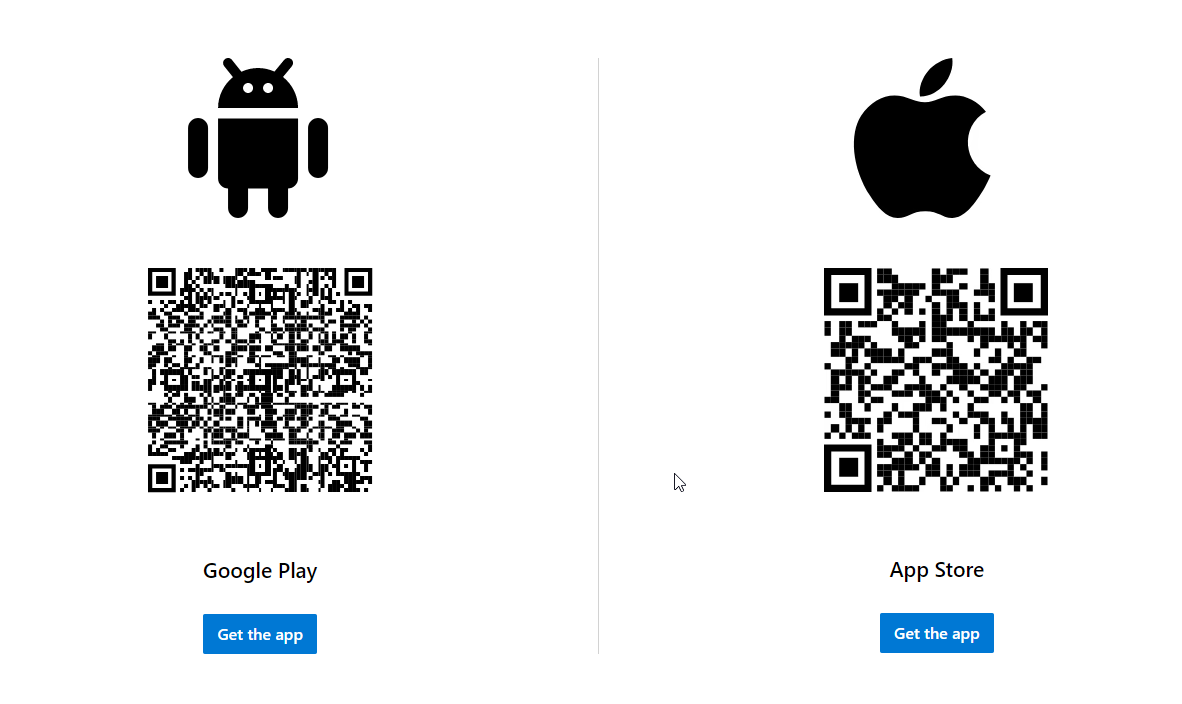
Download the Authenticator App from the web or QR code below onto the mobile device. These are only QR codes to download the app to the mobile device.
With the mobile device, scan the QR code generated in the Desktop Authenticator MFA setup window with the mobile Microsoft Authenticator app.
Approve the test notification on the mobile device and see confirmation of the approval.
The Authenticator app is now successfully set up as the default sign-in method.
If Authenticator is Already Installed
You may have previously installed Microsoft Authenticator for use with Workday or some other application.
To activate the authenticator for your Microsoft accounts:
From the Workstation
Navigate to office.com using the desktop and open your profile in the upper right-hand corner. Select View account.
Select UPDATE INFO from the security settings. You will be asked to confirm your sign-on.
Select ➕ Add sign-in method.
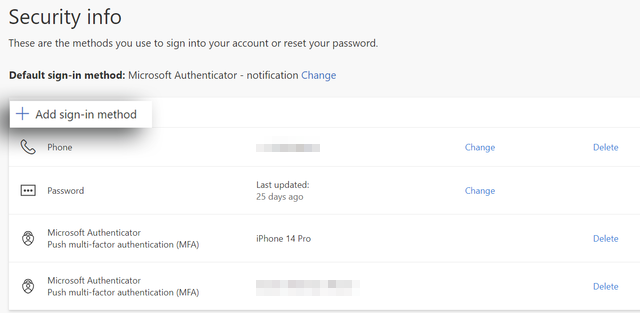
Select the Authenticator app from the Add a method drop-down.
From the Mobile Device
Use your mobile device to set up your work or school account.
Click the ➕ in the upper right corner to add an account.
Select Work or school account and follow the instructions on the screen to set up your Thrive account.
Scan the QR code generated in the Desktop Authenticator MFA setup window with the mobile device.
A number will appear on the mobile device. Enter the number code from the mobile device into the desktop and see that the mobile device is now listed as a security device.